
Modular design,
Encapsulated logic,
Web’s new building blocks.
In a world filled with distractions, finding moments of stillness can be challenging. But coding, much like meditation, offers an opportunity to slow down and be fully present in the task at hand. By approaching your work with mindfulness, each line of code can become a meditative experience, allowing you to create with clarity and calmness. Let coding be a space for reflection and peace—a chance to focus, breathe, and flow with purpose.
Coding Meditation 🍃
By integrating mindfulness into your coding practice, you can transform each session into a calming and focused experience, promoting both creativity and inner peace.
Set the Space: Before you begin coding, take a moment to clear your workspace. Remove any clutter, take a few deep breaths, and set an intention for your time at the computer—whether it’s to stay focused, remain patient, or embrace creativity.
Begin with Breath: Open your code editor, but don’t type just yet. Sit comfortably, close your eyes, and take five deep breaths. Focus on the sensation of air filling your lungs and the gentle release as you exhale. Allow yourself to become grounded and present.
Mindful Typing: As you start coding, focus on each keystroke. Notice the sound of the keyboard, the way your fingers move across the keys. Be fully immersed in the task at hand, letting thoughts or worries drift away. If you get stuck or frustrated, pause and return to your breath.
Flow and Focus: If you enter a state of flow, let yourself sink into it without force. Feel the rhythm of your work and notice how everything feels more connected. If distractions arise, simply acknowledge them and return your attention to the code.
Close with Gratitude: When you’ve completed your task or reached a good stopping point, take a moment to appreciate the work you’ve done. No matter the outcome, acknowledge the effort and creativity you’ve put into it. Finish with a few deep breaths, reflecting on how peaceful and present the process has felt.
Style sealed within,
Custom elements take shape,
Simplicity reigns.
Build a Zen Quote Generator Web Component
Creating your own web component is a fantastic way to learn about modern JavaScript while building something simple, elegant, and useful.
In this tutorial, you’ll learn how to create a simple web component that displays random Zen quotes and allows users to refresh them at the click of a button. This project is perfect for anyone just getting started with web components (a modern way of building reusable, encapsulated HTML elements).
We’ll be using plain HTML, CSS, and JavaScript (no frameworks or libraries) to build a Zen Quote Generator.

What is a Web Component?
Web components allow developers to create reusable custom HTML elements with their own encapsulated styling and behavior. They consist of three key technologies:
- Custom Elements – Define new types of HTML tags.
- Shadow DOM – Encapsulate the element’s structure and styling.
- HTML Templates – Define the structure of the element.
Now, let’s dive in!
Setting Up the Basic HTML Structure
To start, create a simple HTML file with placeholders. This will serve as the container for our custom web component.
<!DOCTYPE html>
<html lang="en">
<head>
  <meta charset="UTF-8">
  <meta name="viewport" content="width=device-width, initial-scale=1.0">
  <title>Zen Quote Generator</title>
  <style>
    /* We'll add page styles here later */
  </style>
</head>
<body>

  <zen-quote></zen-quote>

  <script type="module">
    /* JavaScript will go here */
  </script>

</body>
</html>
We’ll define the custom element <zen-quote>, which will later be used to display the quotes. Inside the <script> tag, we’ll write the logic for the Zen Quote Generator using JavaScript.
Creating the Custom Web Component Class
To create a custom web component, we first define a class that extends HTMLElement. This is the blueprint for our Zen Quote Generator. We’ll do this inside the <script> tag.
class ZenQuote extends HTMLElement {
  constructor() {
    super();
    this.attachShadow({ mode: 'open' }); // Attach Shadow DOM to encapsulate our component
  }
}
Here’s what’s happening:
We define a new class ZenQuote that extends HTMLElement, which allows us to create our custom HTML tag.
attachShadow({ mode: 'open' }): This attaches the Shadow DOM to the element, which ensures that the styles and structure of the component are encapsulated, preventing any interference from the rest of the page.
Add the Zen Quotes Array
Next, let’s add the Zen quotes to our component inside of the constructor that we just set up. We’ll store them in an array so the component can randomly select from them.
this.quotes = [
  "Sitting quietly, doing nothing, spring comes, and the grass grows by itself.",
  "When the mind is clear, the path is clear.",
  "Be like water, flowing yet never losing its nature.",
  "Let go, and the world flows with you.",
  "In the beginner's mind there are many possibilities, but in the expert's, there are few."
];
this.render();
This array contains a few Zen quotes that will be displayed in the component.
Making the Button Interactive
To make the “New Quote” button functional, we need to attach an event listener that displays a new random quote each time it’s clicked.
The connectedCallback() method runs every time the element is added to the DOM. This is a perfect place to set up our event listener to handle when the user clicks the refresh button to display a new quote.
connectedCallback() {
  this.shadowRoot.querySelector('.refresh-btn').addEventListener('click', this.displayRandomQuote.bind(this));
}
Event Listener: We’re adding a click event listener to the refresh button, which will trigger the displayRandomQuote function when the button is pressed.
Binding: We bind this.displayRandomQuote so that it retains the correct context when called inside the event handler.
Display the Quotes
The displayRandomQuote() function randomly selects a quote and updates the displayed text.
displayRandomQuote() {
  const currentQuote = this.shadowRoot.querySelector('.quote').textContent;
  let newQuote;

  do {
    newQuote = this.quotes[Math.floor(Math.random() * this.quotes.length)];
  } while (newQuote === currentQuote);

  this.shadowRoot.querySelector('.quote').textContent = newQuote;
}
It picks a new random quote from the quotes array, ensuring that the new quote isn’t the same as the current one.
Rendering the Component
Next, we define the render() method that creates the HTML and CSS structure for the component. This method adds the initial content to the shadow DOM, including the first Zen quote and the refresh button.
render() {
  this.shadowRoot.innerHTML = `
    <div class="zen-quote-wrapper">
      <div class="quote">${this.quotes[0]}</div>
      <button class="refresh-btn" aria-label="New Quote">↻</button>
    </div>
    <style>
      /* Component CSS styles here */
    </style>
  `;
}
Initial Quote: We display the first quote from the quotes array by default.
Button: We add a refresh button with a simple reload symbol to trigger new quotes when clicked.
Adding Some Zen-like Styles
Now for the fun part—making it look nice! Add this CSS to the <style> block inside your component.
.zen-quote-wrapper {
  text-align: center;
  padding: 20px;
  font-family: 'Garamond', serif;
  background-color: #f0f4f8;
  border-radius: 10px;
  border: 1px solid #ddd;
  width: 300px;
  margin: auto;
}

.quote {
  font-size: 1.5em;
  color: #333;
  margin-bottom: 20px;
  min-height: 90px;
}

.refresh-btn {
  padding: 10px 20px;
  font-size: 1em;
  background-color: #4CAF50;
  color: white;
  border: none;
  border-radius: 5px;
  cursor: pointer;
}

.refresh-btn:hover {
  background-color: #45a049;
}
This CSS gives the component a calm, Zen-inspired look.
The custom <zen-quote> element has rounded corners, a subtle shadow, and gentle padding.
The button has a refreshing green color with a hover effect.
We’ll want some styles on our page too. This lives outside of the component.
  <style>
    body {
      display: flex;
      justify-content: center;
      align-items: center;
      height: 100vh;
      background-color: #ffffff;
    }
  </style>
This body style centers the component on the page and sets a background color that contrasts with our component background. You can ignore these if you have a site already where you’re going to place this component.
Connecting the Component
Lastly, we need to define our custom element so that the browser knows how to handle the <zen-quote> tag. Add the following line at the end of the JavaScript:
customElements.define('zen-quote', ZenQuote);
This registers the ZenQuote class as the behavior for the zen-quote tag, allowing you to use it anywhere in your HTML.
Putting It All Together
Here’s the complete HTML file that you should have once you’ve put everything together.
<!DOCTYPE html>
<html lang="en">
<head>
  <meta charset="UTF-8">
  <meta name="viewport" content="width=device-width, initial-scale=1.0">
  <title>Zen Quote Generator</title>
  <style>
    body {
      display: flex;
      justify-content: center;
      align-items: center;
      height: 100vh;
      background-color: #ffffff;
    }
  </style>
</head>
<body>

  <zen-quote></zen-quote>

  <script type="module">
    class ZenQuote extends HTMLElement {
      constructor() {
        super();
        this.attachShadow({ mode: 'open' });
        this.quotes = [
          "Sitting quietly, doing nothing, spring comes, and the grass grows by itself.",
          "When the mind is clear, the path is clear.",
          "Be like water, flowing yet never losing its nature.",
          "Let go, and the world flows with you.",
          "In the beginner's mind there are many possibilities, but in the expert's, there are few."
        ];
        this.render();
      }

      connectedCallback() {
        this.shadowRoot.querySelector('.refresh-btn').addEventListener('click', this.displayRandomQuote.bind(this));
      }

      disconnectedCallback() {
        this.shadowRoot.querySelector('.refresh-btn').removeEventListener('click', this.displayRandomQuote.bind(this));
      }

      displayRandomQuote() {
        const currentQuote = this.shadowRoot.querySelector('.quote').textContent;
        let newQuote;
        do {
          newQuote = this.quotes[Math.floor(Math.random() * this.quotes.length)];
        } while (newQuote === currentQuote);
        this.shadowRoot.querySelector('.quote').textContent = newQuote;
      }

      render() {
      // Set up the HTML content for the shadow DOM
      this.shadowRoot.innerHTML = `
        <div class="zen-quote-wrapper">
          <div class="quote">${this.quotes[0]}</div>
          <button class="refresh-btn" aria-label="New Quote">↻</button>
        </div>
        <style>
          .zen-quote-wrapper {
            text-align: center;
            padding: 20px;
            font-family: 'Garamond', serif;
            background-color: #f0f4f8;
            border-radius: 10px;
            border: 1px solid #ddd;
            width: 300px;
            margin: auto;
          }

          .quote {
            font-size: 1.5em;
            color: #333;
            margin-bottom: 20px;
            min-height: 90px;
          }

          .refresh-btn {
            padding: 10px 20px;
            font-size: 1em;
            background-color: #4CAF50;
            color: white;
            border: none;
            border-radius: 5px;
            cursor: pointer;
          }

          .refresh-btn:hover {
            background-color: #45a049;
          }
        </style>
      `;
    }
  }

    customElements.define('zen-quote', ZenQuote);

  </script>
</body>
</html>
Wrapping Up
With this tutorial, you’ve learned how to create a simple yet meaningful Zen Quote Generator using Web Components. Whether you’re coding for fun or adding a touch of mindfulness to your website, this is a creative and peaceful way to experiment with web technologies.
Go ahead and customize the quotes, style, and functionality to make it your own. May your development journey be as calm and centered as a Zen garden! 🌿
Reusable code,
Across the web they connect,
Harmony in flow.
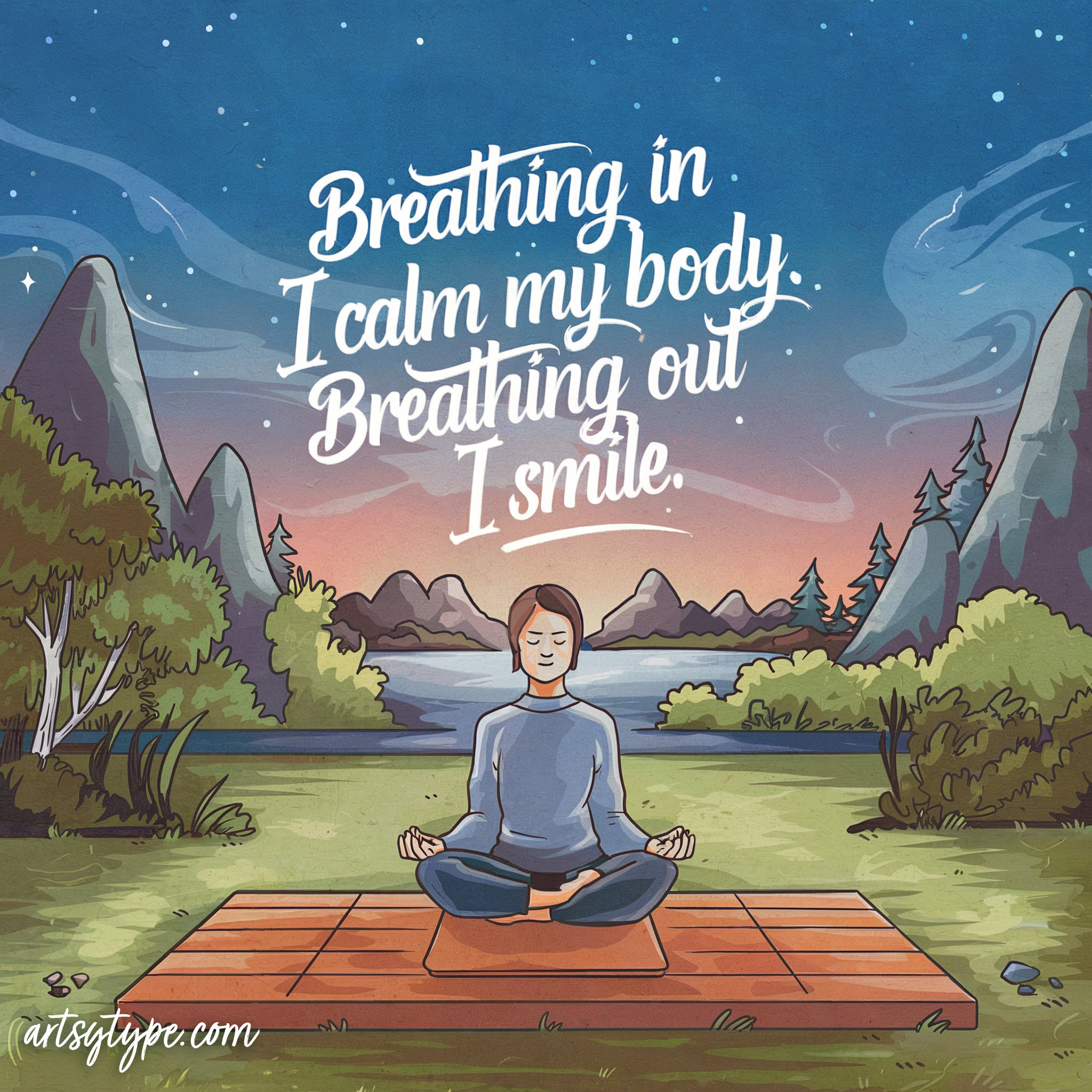
Affirmations


Coloring Page
“No Mud, No Lotus” is a phrase rooted in Buddhist teachings, symbolizing how beauty and growth often emerge from difficult or challenging situations. Just as the lotus flower blooms from the mud, our own struggles can be the foundation for personal transformation and strength. It’s a reminder that hardship is an essential part of growth. I find it very comforting to remind myself of this phrase when challenges arise in my life.

Flow Onward in Calm and Creativity
Thank you for joining me on this zen coding journey! I hope this tutorial helped you bring a little peace and creativity into your development process. Along with the calming meditation, haikus, affirmations, and a peaceful Lotus coloring page, I encourage you to take a mindful moment in your day. Whether you’re coding, coloring, or reflecting, may your creative flow bring you calm and clarity.
Fingers tap the keys,
Maple leaves fall to the ground,
New ideas arise.

 ArtsyType
Leave a comment